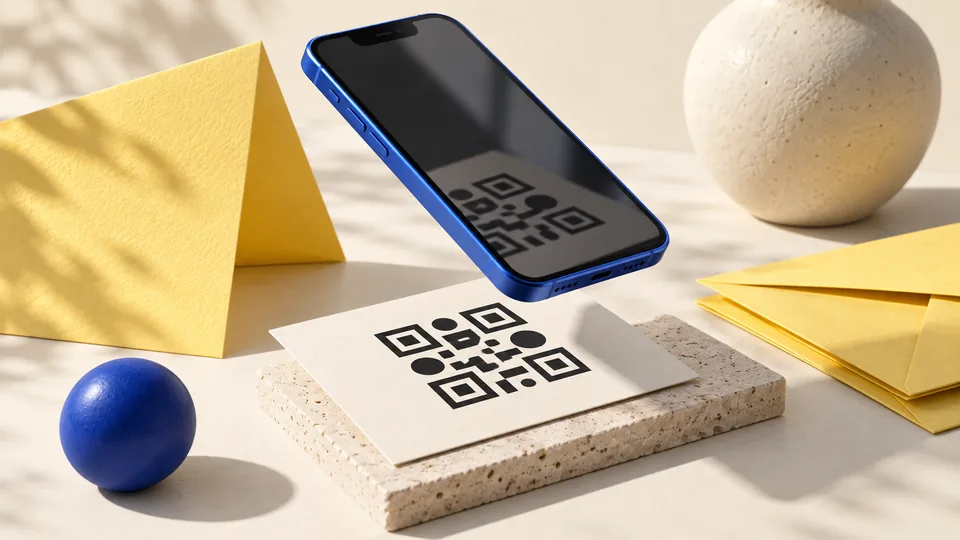
A QR code has a simple job: get someone from a printed page to the right place. The trouble starts when the link changes, the code will not scan, or a free design comes with a paid feature you did not expect.
The Canva QR code generator is a good fit for flyers, menus, and business cards. You can create a code inside a design you already have. The key is to choose the right native tool before you print.
Canva QR code generator: the quick verdict
| Your need | My choice |
|---|---|
| A fixed website link | Static QR code |
| A URL you may replace later | Dynamic QR code |
| No Canva logo on a free plan | Static QR code |
| Scan insights or your own logo inside a dynamic code | Check an eligible higher plan |
My view: use static QR codes for a stable page you control. Use dynamic QR codes when a menu, event page, or offer may move. The second choice brings more control, but also a greater reliance on Canva's redirect service.
Static and dynamic QR codes are different tools
A static code stores the web address you enter. Once it is printed, that address cannot change. You can still update the content on that same web page. A dynamic code points through a managed link, so its destination can be changed without replacing the printed square.
Canva's QR-code help guide confirms that both native tools are available. Static codes have no Canva logo and no scan analytics. Dynamic codes on Free, Pro, and Education show Canva branding. Business, Enterprise, and Nonprofit plans can remove that branding and access more controls, including scan insights and expiry settings.
That is why the phrase “free version” needs care. A free dynamic code can be useful, but it does not have the same look or controls as every paid plan. Nor is a third-party app in Canva's Apps panel necessarily covered by Canva's native offer.
Choose the type before you begin. Canva does not let you turn an existing static code into a dynamic one, or the other way around. If you change your mind after printing, you will need a new code and a new print run.
How to create a QR code in Canva
You do not need a separate design file just for the code. Open the flyer, sign, or business card that will carry it. Keep the final link in a plain text note so you can check every character.
- Open Apps in the Canva editor. Search for QR code and select Canva's native static or dynamic tool. You may also find the tools through Elements.
- Paste the complete URL. Use the final secure web address. Open it first to make sure it leads to the page you want.
- Customize the code. Static controls include colors and margin. Dynamic controls include pattern and corner styles. Available branding features depend on your plan.
- Save and place it. Leave clear space around the code. Keep it away from trim edges and folds.
- Download the design and scan the result. Check the exported file and a printed copy at the actual size.
Log in with the account that should keep control of a dynamic code. The creator controls the destination by default. Some plans can share editing access, but code ownership is not something to treat as freely transferable.
For client work, that detail matters. A code tied to a former helper's account can be awkward to manage later. Agree on the owner before you create a QR code for a long-lived sign.
Custom QR codes: keep the design easy to scan
Custom QR codes can look good without being hard to read. Dark marks on a light background are the safest starting point. A pale code over a busy photo asks the camera to do more work.
Width matters, but there is no single width that suits every poster or package. Canva suggests at least 2 by 2 cm for a printed code. Longer links, rough paper, poor light, and a longer scanning distance can call for more space. A tiny code on a huge wall sign is still a tiny target.
The blank border is part of the design. QR-code developer DENSO WAVE explains the four-module quiet zone: leave a clear margin at least four small code squares wide on each side. Do not let a border, caption, or nearby logo crowd that space.
When you customize QR code design, change one thing at a time. Check the width after resizing a business card. Scan again after changing the colors. Do not stretch a square code into a rectangle to fill a gap in the layout.
Want your own logo nearby? Place it beside the code with plenty of breathing room. Our company logo maker guide explains the files you will want for clear print work. A sharp brand mark cannot rescue a blurry QR code.
What works well, and where I would be careful
The best part is convenience. You can add QR codes to Canva designs without jumping between several apps. A free static code is enough for a link to your main website, a contact page, or a stable booking page.
The main drawback is confusion between tools. In a Canva user discussion, people describe surprise at logo placement and differing QR options. That feedback is a useful cue to check which tool you have opened. It does not prove that all Canva QR codes carry a logo or expire.
Third-party apps can have their own trials, prices, and redirect rules. Read the app name and terms before you generate a code. Do not assume that a search result inside Canva is made by Canva.
I would also avoid paying for a higher plan solely to get one simple code without first checking static. The free version may already do the job. Pay for dynamic controls when you have a real use for them, such as changing a campaign link after print.
Before you print a business card or sign
Use a QR code reader on more than one phone if you can. Scan the code in the exported file, then scan a physical proof. A screen can make a design look much clearer than ink on textured stock.
- Check the full destination, including spelling and the final page.
- Use mobile data as well as Wi-Fi, so a private network does not hide an access problem.
- Look at the mobile page. The scan should not lead to a clipped form or unreadable menu.
- Keep a short written URL nearby when space allows.
- Save the final design, export, and destination link together.
If the destination still needs work, our Framer template comparison can help you choose a simple landing page. Finish that page before you print a code that points to it.
Can you change the link after printing?
Yes, if you chose a dynamic code and still have access to edit it. Select it, use the URL control, and save the new destination. Then scan the already printed code to confirm the change.
A static code keeps its original URL. If you own that web address, you may be able to redirect the page on your website. That is a change to your site, not to the printed code.
Do Canva QR codes expire?
A static pattern has no built-in timer. It still needs a working destination. Canva says its native codes do not expire by default, though dynamic codes can have an expiry date where that feature is available. Service rules and account control still matter.
For a permanent label, I would favor a short URL on a domain I control. That keeps the printed address useful even if the content behind it moves. Renewing that domain matters more than the age of the ink.
Is Canva's QR code generator worth using?
Yes, for straightforward design and print work. My default is a static code with strong contrast, a clear margin, and a stable link. Choose dynamic when future edits justify it. In either case, scan the final print before ordering the full stack.